Your pet. Your next sticker.
Make an avatar and a phone wallpaper to match.
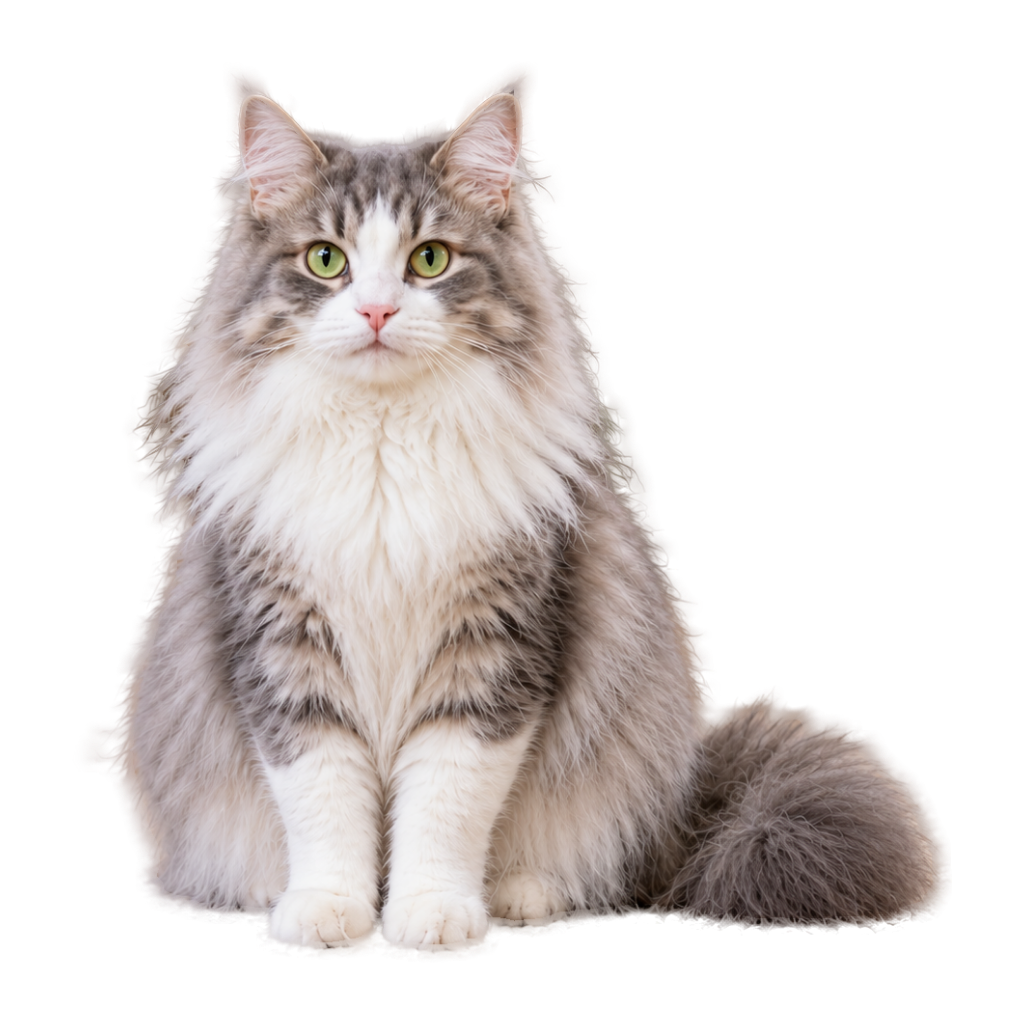 Sample photo
JPG / PNG / WebP · Up to 10 MB
Photos are uploaded for processing, without a permanent gallery.
One cutout. Three ways to use it.
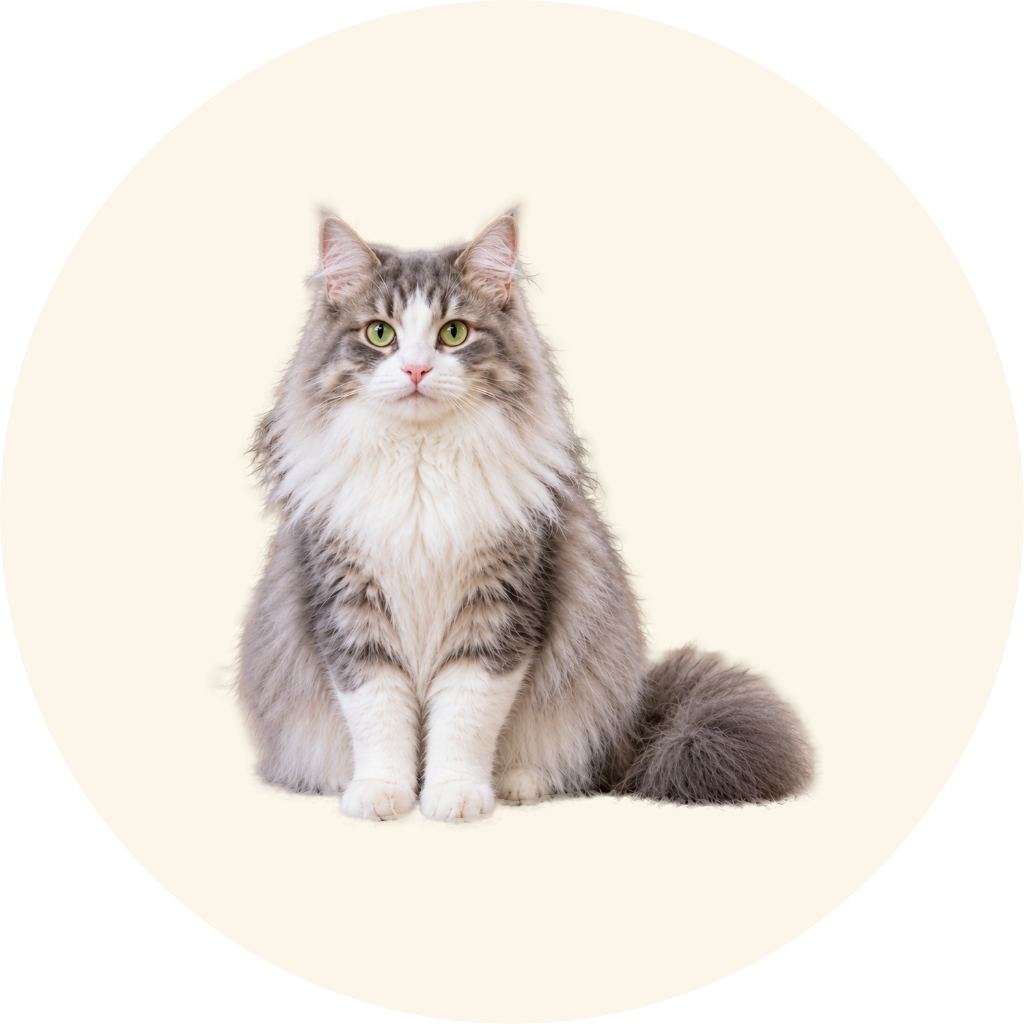
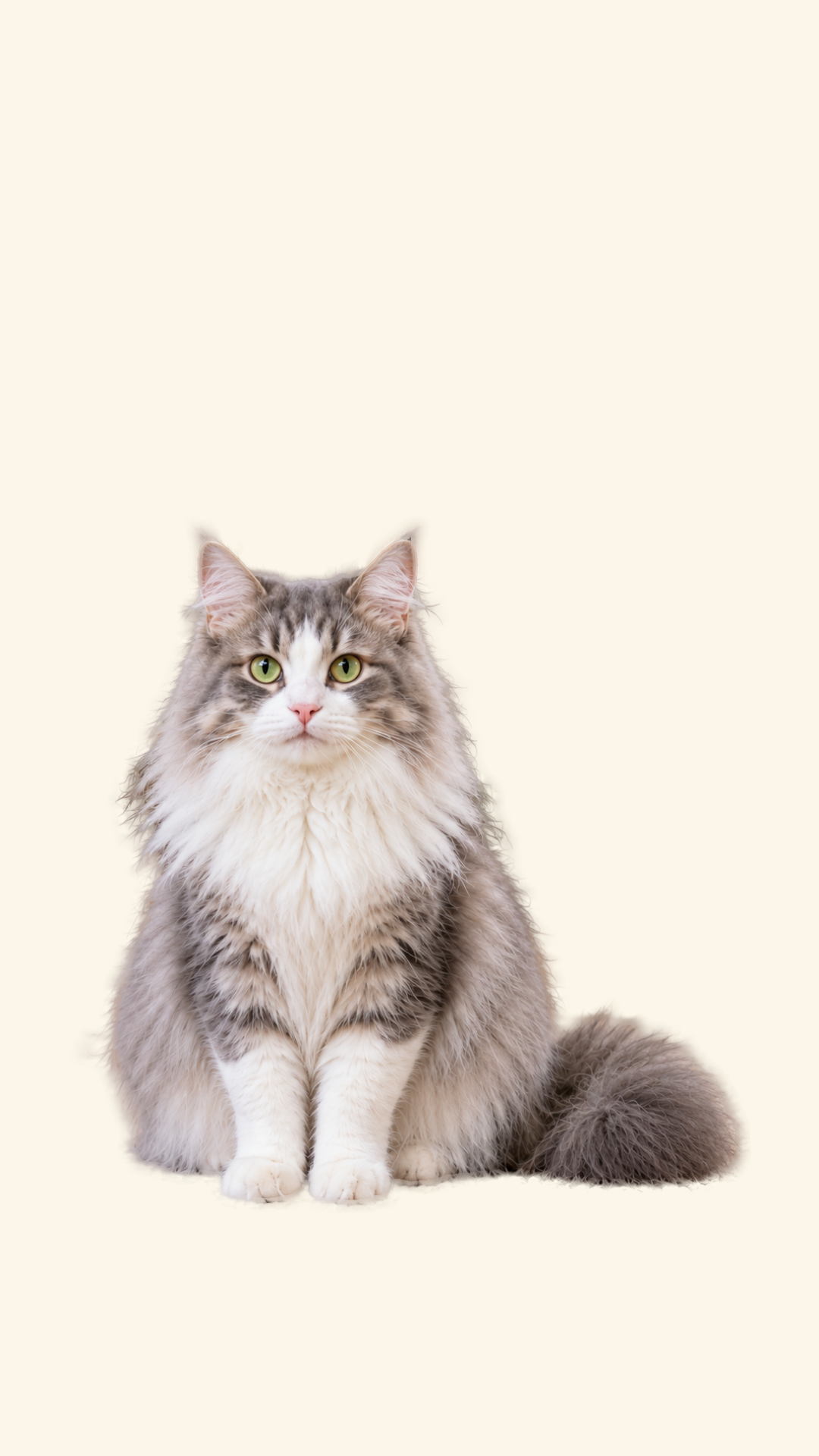
These are actual PNG exports from Photo Studio using the same cutout. The original demonstration photo is AI-generated.
How do you turn a pet photo into a sticker, avatar or wallpaper?
FanMeowy Pet Sticker Studio turns a pet photo cutout into a transparent sticker, a circular or square avatar, and a 9:16 phone wallpaper. Upload a photo for background removal, then choose styles, colors and a short caption on your device. Download each PNG separately, with no app installation required.
Upload and check the cutout
Choose a clear pet photo. After the server removes its background, drag the comparison to inspect ears, whiskers and paws against the original. Try another photo if the edges are not right.
Choose a format and a few words
After checking the cutout, choose ‘Make a sticker, avatar or wallpaper’. Pick a sticker with no outline or a 12px or 24px white border, a circular or square avatar, or a wallpaper with space for your phone clock. Add up to 40 characters or emoji; long captions are fitted or shortened.
Download each image to use
Stickers and avatars export as 1024 × 1024 PNGs; wallpapers export as 1080 × 1920 PNGs. Download each format separately, rather than as a ZIP. Changing styles and exporting again use no extra cutout attempt.
FAQ
A few things before you start.
What is the difference between the three formats?
A sticker is a 1024 × 1024 transparent PNG, with no outline or a 12px or 24px exterior white border, for layering into chat images, journals or designs. Avatars are also 1024 × 1024: a circular avatar is transparent outside its circle, while a square avatar uses your chosen background color. A phone wallpaper is 1080 × 1920, or 9:16, with space at the top for the clock. Its final placement depends on your device and wallpaper settings.
Which photos work, and does the tool enhance image quality?
Use a JPG, PNG or still WebP up to 10 MB and 24 megapixels. HEIC and animated images are not supported. Clear subjects with a distinct background are easier to inspect. The cutout is limited to 1600 pixels on its longest side, then arranged on the selected export canvas. A larger canvas is not AI image enhancement. Backlighting, occlusion and similar fur and background colors may affect edges, so check the comparison first.
Are my photo and caption uploaded?
The initial background removal uploads your photo to a server. The original and result pass through memory during the request, without a permanent gallery. Sticker, avatar and wallpaper styling, colors and captions are then generated in your browser, with no new image upload for those styles. Names and captions are not sent to the processing endpoint. Download results before closing the page. Necessary usage-limit records and aggregate counters are retained, without photos or pet details in analytics.
Can I add a name or emoji, and do I need an app to download?
Add an optional name, short caption or emoji, up to 40 characters or emoji. Long text wraps, shrinks or is shortened; the preview shows the exported result. No account or app installation is needed, and downloads have no added brand watermark. Each format downloads as its own PNG. If you want to use an image in an app, download and add it manually; this page does not transfer photos to an app automatically.
Do three formats use three free attempts?
No. The allowance applies to background removal: each browser can try 2 photos per UTC day, counted when processing begins. Network and site-wide capacity limits also apply. Once a photo is cut out, making stickers, avatars and wallpapers on your device, changing colors or captions, and downloading each result use no additional attempt. Trying the sample does not use the cutout allowance either.
How can I use the downloaded images?
Layer the transparent sticker in a chat image, journal or design tool that supports PNG, use the avatar for a profile, or set the wallpaper as a phone background. A PNG download is not an automatically installed messaging sticker pack; follow your messaging app’s import steps. Use photos and text you have the right to process, and check the edges and caption before sharing. The tool does not generate missing body parts or grant rights to third-party material.